
How to Fix Laptop Overheating Without Opening It — 9 Real Fixes (2026)
Laptop overheating and shutting down? Here are 9 proven fixes that Fix Laptop Overheating Without Opening It. You can do right now — no screwdrivers, no technical skills required. Includes temperature checking guide.
TECHFINE SCORE TOOL GUIDES
Team TechnoFineHub
5/3/20267 min read

How Hot Is Too Hot? Checking Your Laptop Temperature
Before you start fixing, you need to know your actual temperatures. Download HWMonitor or Core Temp (both free) and look at the CPU temperature readings.
Temperature guide:
Below 70°C under load: Perfectly healthy
70°C to 85°C under load: Normal for most laptops
85°C to 95°C under load: Running hot — action needed
Above 95°C: Critical — the CPU is likely throttling and the laptop could shut down
If you see temperatures above 85°C during normal web browsing, your laptop definitely has an overheating problem. Under heavy gaming or video editing, temperatures in the 90s are less alarming but still worth addressing.
Fix 1: Never Use Your Laptop on Soft Surfaces
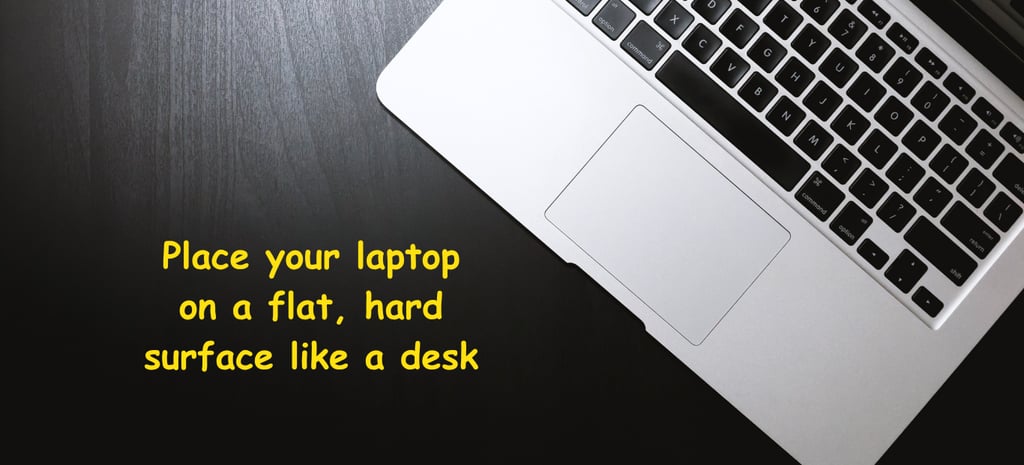
This is the simplest fix and the one most people ignore. Beds, sofas, pillows, and blankets block the ventilation on the bottom of your laptop, effectively suffocating it.
Most laptops pull cool air in through vents on the bottom and exhaust hot air out through the sides or rear. When those bottom vents are blocked, the internal temperature can rise by 15 to 20°C within minutes.
Always use your laptop on a hard, flat surface — a desk, a tray, or a lap desk. If you regularly use your laptop in bed, a lap desk with a solid base is the single most impactful change you can make.
Fix 2: Clean the Vents With Compressed Air
Dust accumulates inside your laptop and acts as an insulating blanket around the components. Even 1mm of dust on the heatsink can raise CPU temperatures by 10 to 15°C. You do not need to open the laptop to address this significantly.
Get a can of compressed air (widely available, inexpensive) and use it to blow air into all the visible vents — typically on the bottom and sides of the laptop. Do this outdoors or over a trash can, as a surprising amount of dust will come out.
Hold the can upright and use short, controlled bursts. Do not shake the can while spraying, and do not hold the nozzle too close to the vents. Blow in from multiple angles to dislodge dust that has packed into the heatsink fins.
Doing this every three to four months keeps dust from building up to the point where it causes real problems.
Fix 3: Change Your Power Plan to Balanced
Windows power plans directly control how hard your CPU works. "High Performance" mode pushes the CPU to run at maximum speed at all times — generating far more heat than necessary during light tasks.
How to change it: Go to Settings → System → Power and Sleep → Additional Power Settings. Select "Balanced" from the list.
You can also do this quickly by clicking the battery icon in the taskbar and dragging the slider from "Best Performance" to "Balanced" or "Better Battery."
The performance difference in everyday tasks like browsing, Office, and video calls is negligible. But the temperature difference can be 10 to 20°C — which is massive.
Fix 4: Set a CPU Power Limit
Even within the Balanced power plan, you can manually cap how much power your CPU is allowed to use. This is one of the most effective ways to reduce heat without noticeable performance impact for everyday tasks.
Steps:
Search for "Edit Power Plan" in the Windows search bar
Click "Change advanced power settings"
Find "Processor power management" → "Maximum processor state"
Change it from 100% to 80% or 85%
This tells Windows to never push the CPU beyond 80-85% of its maximum clock speed, which dramatically reduces heat output. For most users doing non-CPU-intensive work, they will not notice any difference in speed.


Fix 5: End High-CPU Background Processes
Some applications run in the background and push your CPU to near-100% for no visible reason. This generates heat even when you think you are not doing anything demanding.
Open Task Manager (Ctrl + Shift + Esc), click the CPU column to sort by usage. Look for any process consistently above 10-15% CPU that you do not recognize or did not open yourself.
Common culprits include antivirus scans running mid-task, Windows Update (TiWorker.exe), browser extensions, and cryptocurrency mining malware (if the process has a random name you do not recognize).
Right-click and end tasks for processes you know are unnecessary. For unknown processes, search them online before ending them.
Fix 6: Update Your Drivers — Especially the GPU Driver
Outdated or corrupt GPU drivers can cause the graphics card to run hotter than it should, because it is not power-managing itself correctly. This is surprisingly common after a Windows update.
Update GPU drivers on Windows:
For NVIDIA: Go to nvidia.com/drivers, download the latest driver for your GPU model
For AMD: Go to amd.com/support and download the latest driver
For Intel integrated graphics: Use Windows Update or go to intel.com/download-center
After updating, restart your laptop and check temperatures again.
Fix 7: Use a Cooling Pad
A good cooling pad can lower temperatures by 5 to 15°C. This will not fix the root cause of severe overheating, but it is an excellent supplement to the other fixes on this list.
Look for a cooling pad with at least two fans positioned to align with your laptop's intake vents (usually at the bottom center or sides). Pads with USB-powered fans give you control over fan speed.
Cooling pads are especially valuable during extended use sessions, gaming, or video editing where sustained high performance is needed.
Fix 8: Adjust Your Screen Brightness and Close Unused Apps
The display is one of the most power-hungry components in a laptop. Running at 100% brightness while multiple browser tabs, a video, and background apps are all open significantly raises overall system heat.
Reduce brightness to 60-70% (usually still very comfortable indoors), close browser tabs you are not actively using, and close applications running in the background. Each of these reductions lowers the overall power draw and therefore reduces heat generation.
Fix 9: Undervolt Your CPU (Advanced — No Opening Required)
Undervolting means reducing the voltage supplied to your CPU without reducing its performance. A lower voltage means less heat while maintaining the same speed.
On many laptops, this can be done using Intel XTU (Extreme Tuning Utility) for Intel CPUs, or Ryzen Controller for AMD CPUs. Both are free software tools that do not require opening your laptop.
This is an advanced step and the exact values vary by CPU model, so research your specific processor before attempting it. However, for users comfortable with the process, undervolting can reduce CPU temperatures by 10 to 20°C with no performance loss.
When These Fixes Are Not Enough
If you have applied all the fixes above and your laptop is still reaching 90°C or above during light use, the issue is most likely:
Dried thermal paste: The thermal paste between your CPU and heatsink dries out after three to five years and loses its ability to transfer heat. Replacing it requires opening the laptop — but it is the most impactful fix possible and typically drops temperatures by 20 to 30°C. Consider taking it to a repair shop if you are not comfortable opening it yourself.
A failing fan: If your fan has stopped spinning or is spinning slower than normal, none of the software fixes will be enough. Check if you can hear and feel the fan blowing hot air from the vents. If not, the fan may need replacement.
FAQ's
Can laptop overheating damage it permanently?
Yes. Sustained temperatures above 95°C can permanently degrade CPU performance over time, reduce battery lifespan faster, and in extreme cases cause component failure. This is why addressing overheating promptly matters.
Why does my laptop overheat only when charging?
Charging generates additional heat from the battery. Combined with running tasks, this can push total heat beyond safe limits. Try charging while the laptop is idle, or use a charging limiter to cap the battery at 80%.
My laptop fan is very loud — is that overheating?
A loud fan usually means the cooling system is working hard because temperatures are high. It is the symptom, not the cause. Follow the fixes in this guide and the fan noise should reduce as temperatures drop.
Is it bad to use a laptop while it is hot?
Using it occasionally while warm is fine. Sustained high temperatures (above 90°C for extended periods) cause long-term damage. If your laptop is regularly hitting those temperatures, address the cause before continuing heavy use.
How often should I clean the vents?
Every three to four months for heavy users, or every six months for light users. If you have pets that shed fur, clean monthly — pet hair clogs vents remarkably fast.
Related: Why Is My Laptop Slow? |
How to Fix Laptop Overheating Without Opening It (2024 Guide)
A laptop that overheats is not just uncomfortable to use — it is actively damaging itself. Every time your laptop hits 95°C or above, it is shortening the lifespan of your CPU, GPU, and battery. The good news is that most overheating problems can be significantly reduced without taking your laptop apart.
This guide covers nine practical fixes you can apply right now, starting with the easiest and moving toward more involved solutions. By the end, your laptop should be running noticeably cooler.
First, confirm that overheating is actually your problem. Use the free [TechFineScore Pro tool] to run a quick diagnostic — it checks for overheating alongside all other common issues so you get the full picture.
Quick Answer: Laptop overheating is most often caused by blocked vents, dust buildup, high CPU usage from background processes, or running the laptop on soft surfaces that block airflow. Fix it by: placing it on a hard flat surface, blowing out the vents with compressed air, lowering the power plan to Balanced, and limiting background processes. For persistent overheating, a cooling pad and thermal paste replacement are the most effective long-term solutions.
Contact
Reach out for support or collaborations.
info@technofinehub.online
© 2026 TechnoFine Hub All rights reserved.
All guides