
Why Is My Laptop So Slow All of a Sudden? 7 Real Causes and Fixes (2026)
" Why is My Laptop So Slow All of a Sudden?" Here are the 7 most common real causes — including the one most people miss — and exactly how to fix each one step by step.
TECHFINE SCORE TOOL GUIDES
TechnoFine Hub
5/1/20266 min read
Why Is My Laptop So Slow All of a sudden? (7 Real Causes + Fixes)
Your laptop was running fine yesterday. Today it feels like you are wading through mud — programs take forever to open, the fan is spinning loudly, and even moving your mouse feels delayed. Sound familiar?
The frustrating part is that this does not happen for no reason. A laptop that suddenly slows down almost always has a specific, fixable cause. In this guide, we go through the seven most common real causes of sudden laptop slowdowns and exactly what you should do to fix each one.
Before going through the list, use the free TechFine Score Pro diagnostic tool to get a quick health score. It will tell you which of these causes is most likely affecting your specific device.
Quick Answer: A laptop that suddenly becomes slow is most commonly caused by one of these: a recent Windows update, a full or failing hard drive, a malware infection, overheating causing the CPU to throttle, too many background processes, or a failing battery forcing the system to conserve power. Each of these has a specific fix — read below to find yours.
Cause 1: A Windows Update Ran in the Background
This is the most frequently overlooked cause. Windows updates often run silently in the background, and when they install, they can consume up to 80% of your CPU and disk resources while doing so. The result is a laptop that feels completely unusable — even though nothing is actually wrong with it.
How to check: Open Task Manager (Ctrl + Shift + Esc), click the "Performance" tab, then the "Open Resource Monitor" link at the bottom. Under the CPU tab, look for processes like "TiWorker.exe" or "WaasMedic.exe" using high CPU. These are Windows Update processes.
The fix: Wait it out. Windows Update processes usually finish within one to two hours. Restarting your laptop after the update completes will often bring performance back to normal immediately.
If updates are constantly running and slowing your laptop down, you can schedule active hours in Settings → Windows Update → Advanced Options → Active Hours, so updates only install when you are not using the device.
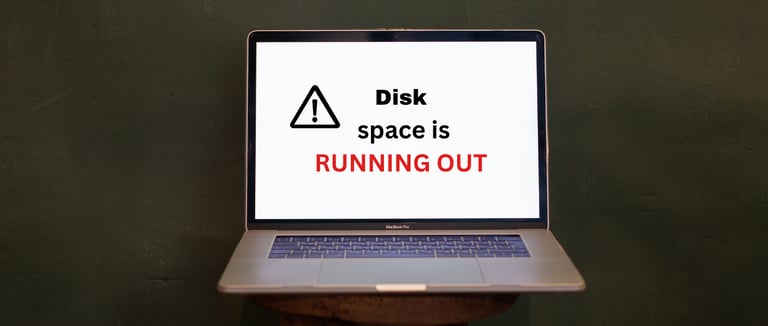
Cause 2: Your Disk Is Nearly Full
This is the cause that catches most people by surprise. When your hard drive or SSD drops below 10% free space, Windows performance degrades dramatically. The operating system uses free disk space as virtual memory and temporary storage — when that space runs out, everything slows down.
How to check: Open File Explorer, right-click your C: drive, and click Properties. Look at how much free space is shown.
The fix: If you have less than 10GB free, this is almost certainly contributing to your slowdown. Open Settings → System → Storage → Cleanup Recommendations. Windows will show you exactly what can be safely deleted — temporary files, old Windows Update files, and Recycle Bin contents often add up to several gigabytes.
For a deeper clean, read our full guide: [Free Up Disk Space on Windows 11 Without Deleting Important Files].
Cause 3: Malware or a Background Mining Program
Malicious software often reveals itself through sudden, unexplained slowdowns — especially if you recently downloaded something from an unfamiliar website, clicked a link in an email, or installed a program that came bundled with extra software.
How to check: Open Task Manager and sort processes by CPU usage (click the CPU column header). Look for any process using more than 20% CPU that you do not recognize. Right-click suspicious processes and choose "Search online" to find out what they are.
Common signs of malware-related slowdown include high CPU usage from a process with a random-looking name, your browser homepage changing on its own, excessive popup ads, and the laptop running hot even when idle.
The fix: Run a full scan with Windows Defender (Settings → Windows Security → Virus and Threat Protection → Quick Scan → Full Scan). Additionally, download Malwarebytes Free (the free version is excellent), run a full scan, and remove anything it finds.
Cause 4: Overheating — Your CPU Is Throttling Itself
Modern CPUs have a built-in safety mechanism called thermal throttling. When the processor gets too hot — typically above 90°C — it automatically reduces its clock speed to prevent damage. This causes a sudden, dramatic drop in performance.
This is especially common on laptops that are 2 to 3 years old, because dust buildup in the vents restricts airflow. It also happens when you are using the laptop on a bed or pillow that blocks the bottom vents.
How to check: Download HWMonitor (free) and look at the CPU temperature. If it is consistently above 85°C during normal use, your laptop is overheating.
The fix: First, make sure you are always using your laptop on a hard, flat surface. Second, use a can of compressed air to blow dust out of the vents without opening the laptop. Third, lower the performance mode in Windows — go to Settings → System → Power and Sleep → Additional Power Settings and switch from "High Performance" to "Balanced."
For more detailed steps, see our guide: How to Fix Laptop Overheating Without Opening It.
Cause 5: Too Many Startup Programs
Every program you install wants to start automatically when Windows boots. Over time, this builds up. A laptop with 30 startup programs can take five minutes to become fully usable after turning on — even if the hardware is perfectly healthy.
How to check: Open Task Manager, click the "Startup" tab. You will see a list of every program that launches at startup and its impact (Low, Medium, or High).
The fix: Right-click any program you do not need immediately when you turn on your laptop and click "Disable." Common startup programs you can safely disable include Spotify, Teams (unless you always use it immediately), OneDrive (it will still sync, just starts slightly later), Zoom, Skype, and Discord.
Be careful not to disable programs labeled "Microsoft" or programs from your hardware manufacturer (like your GPU or trackpad drivers), as these can affect functionality.
Cause 6: Your Hard Drive Is Starting to Fail
Traditional spinning hard drives (HDDs) fail gradually. One of the earliest signs of a failing HDD is sudden, severe slowdowns — especially when opening files or launching programs. The drive heads physically move to read data, and as sectors become damaged, these operations slow to a crawl.
How to check: Open Command Prompt as Administrator and type:
wmic diskdrive get status
If it does not say "OK," your drive may be failing. Download CrystalDiskInfo (free) for a more detailed health assessment.
The fix: If your drive shows errors, back up all your important data immediately. If your laptop still has an HDD, upgrading to an SSD will not only fix the slowdown but will make your laptop feel like a completely new machine — boot times typically drop from 2 minutes to under 20 seconds.
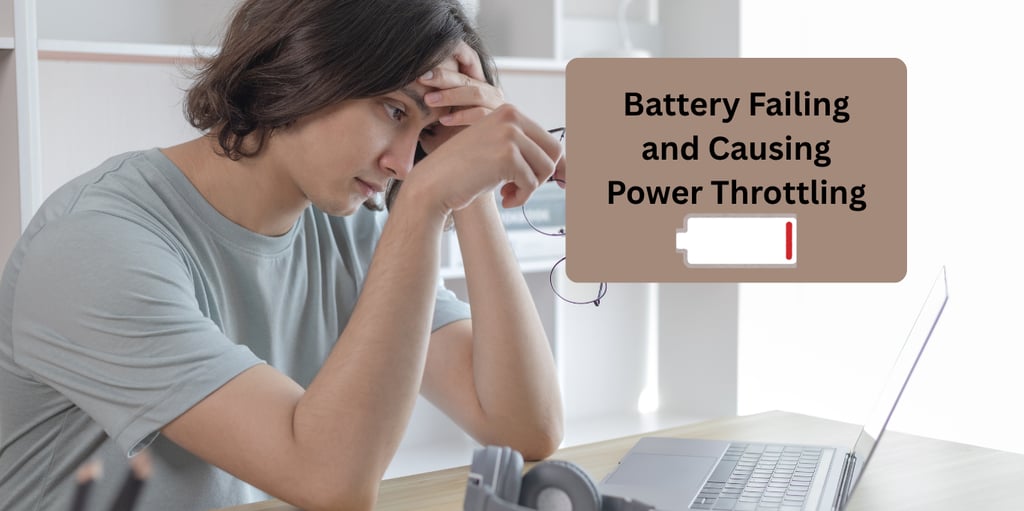
Cause 7: Your Battery Is Failing and Causing Power Throttling
This one surprises most people. When a laptop battery degrades significantly — typically below 40% of its original capacity — Windows automatically reduces CPU performance to protect the dying battery from discharging too quickly. This is called power throttling, and it can make your laptop feel dramatically slower even when plugged in.
How to check: Generate a battery health report using Command Prompt. Type:
powercfg /batteryreport /output "C:\battery-report.html"
Open the report and compare Design Capacity to Full Charge Capacity. If Full Charge is below 50% of Design Capacity, your battery is in poor health and may be causing throttling.
The fix: Replace the battery. This is typically much cheaper than buying a new laptop. Once replaced, performance usually returns to normal immediately.
Step-by-Step: What to Do Right Now
If you are not sure which cause applies to you, do this in order:
Open Task Manager and check what is using your CPU and disk right now
Check how much free space you have on your C: drive
Run a Windows Defender full scan
Check your laptop's temperature using HWMonitor
Review your startup programs and disable unnecessary ones
Run the battery health report
Alternatively, use the [TechFineScore Pro tool] to get a complete diagnosis in under two minutes — it will tell you exactly which issues your laptop has and what to do about each one
FAQ's
Can a slow laptop be fixed without reinstalling Windows?
In the vast majority of cases, yes. Reinstalling Windows should be a last resort. The seven causes covered in this guide can all be fixed without a reinstall.
Why is my laptop slow even after a restart?
If restarting does not help, the issue is likely a startup program, malware, a failing hard drive, or a battery in poor health. These issues persist through restarts.
Does more RAM make a slow laptop faster?
If your RAM usage is consistently above 80% (visible in Task Manager), adding more RAM will make a significant difference. If your RAM usage is normal but your laptop is still slow, the bottleneck is elsewhere — usually the hard drive or CPU.
My laptop is slow only when using the browser. Why?
Browsers, especially Chrome, are notorious for consuming large amounts of RAM and CPU. Try disabling extensions one by one to find the culprit. Also check if hardware acceleration is turned on (it should be) in your browser settings.
Is it normal for a laptop to slow down as it gets older?
Slight slowdown over time is normal as software becomes more demanding. But a sudden dramatic slowdown is never normal and always has a specific cause.
Related: How to Check Laptop Health Score for Free
Contact
Reach out for support or collaborations.
info@technofinehub.online
© 2026 TechnoFine Hub All rights reserved.
All guides