
How to free Up Disk Space on Windows 11 Without Deleting Important Files (2026)
Running out of storage on Windows 11? Here are 9 safe methods to free up Disk Space on Windows 11 Without Deleting Important Files you actually care about. Discover built-in tools like Storage Sense and Cleanup recommendations.
TechnoFine Hub
4/2/20266 min read

How to Free Up Disk Space on Windows 11 Without Deleting Important Files
When your Windows 11 C drive starts filling up, your laptop does not just run out of space — it actually slows down significantly. Windows needs free disk space to create temporary files, manage virtual memory, and run system processes. When that space is gone, performance degrades noticeably.
The good news is that most laptops have gigabytes of completely unnecessary files sitting on the drive right now — old Windows updates, temporary files, cached data, and more. You can reclaim this space safely without deleting a single document, photo, or application you actually need.
This guide shows you exactly how to do it, starting with the fastest and easiest methods.
Quick Answer: To quickly free up disk space on Windows 11: Open Settings → System → Storage → Cleanup Recommendations. Windows will show you temporary files, old Windows updates, and other safe-to-delete items. Running Storage Sense and Disk Cleanup together typically frees between 5GB and 20GB on most laptops without removing any important files.
Why Low Disk Space Slows Down Windows 11
Before diving into the fixes, it helps to understand why disk space affects performance. Windows 11 uses a portion of your hard drive as a "page file" — a virtual extension of your RAM. When your RAM is full, Windows moves data it is not actively using to this page file temporarily.
If your C drive is nearly full, the page file cannot expand when needed, causing applications to stall or crash. Additionally, Windows needs temporary space to install updates, extract files, and run certain operations. Without it, these processes fail or slow to a crawl.
The ideal minimum free space on your C drive is 15% of total capacity. On a 256GB drive, that means keeping at least 38GB free. On a 512GB drive, keep at least 75GB free.
Method 1: Use Storage Sense (Automatic Cleanup)
Storage Sense is a built-in Windows 11 feature that automatically cleans up temporary files, old downloads, and content in the Recycle Bin.
How to enable it:
Open Settings (Windows + I)
Go to System → Storage
Toggle "Storage Sense" to On
Click "Storage Sense" to open its settings
Under "Run Storage Sense," select "Every week" or "Every month"
Enable "Delete temporary files that my apps are not using"
Set the Recycle Bin cleanup to "30 days" or less
To run it immediately, scroll down and click "Run Storage Sense now."
On first run, Storage Sense typically frees between 2GB and 8GB on a laptop that has never been cleaned.
Method 2: Delete Old Windows Update Files
After Windows installs updates, it keeps a copy of the old files so you can theoretically roll back. These files can take up between 5GB and 15GB of space, and after 10 days, rolling back is no longer possible anyway.
How to delete them:
Press Windows + S and search "Disk Cleanup"
Open Disk Cleanup and select your C: drive
Click "Clean up system files" (you need admin rights)
Check the box next to "Windows Update Cleanup"
Also check "Previous Windows installation(s)" if it appears
Click OK and then Delete Files
This is one of the safest things to delete and one of the most space-saving. It is not uncommon to reclaim 10GB or more from this step alone.
Method 3: Clear Temporary Files Manually
Windows and applications create hundreds of temporary files while running, and they are not always cleaned up afterward.
Quick method:
Press Windows + R, type %temp%, and press Enter
Select all files (Ctrl + A) and delete them
Skip any files that say they are in use (click Skip, not Cancel)
Second temp folder:
Press Windows + R again, type temp, press Enter
Delete everything you can in this folder as well
These folders are safe to completely clear. The files here are meant to be temporary and Windows will recreate whatever it needs.
Third temp location — Prefetch:
Open Command Prompt as Administrator
Type del /q/f/s %TEMP%\* and press Enter
You can safely delete the contents of all temp folders. Nothing important is stored here.
Method 4: Compress Your Windows Installation (WIMBoot)
Windows 11 includes a built-in compression feature that compresses system files to save several gigabytes — without any performance impact on modern hardware.
Open Command Prompt as Administrator and type:
compact.exe /compactos:always
This compresses the Windows installation files and can save between 1.5GB and 3GB. The compression is transparent — you will not notice any difference in how Windows performs. To undo it, run compact.exe /compactos:never.


Method 5: Uninstall Bloatware and Apps You Never Use
Pre-installed applications and apps you installed but no longer use take up space quietly in the background.
How to find them:
Go to Settings → Apps → Installed Apps
Click the "Sort by" dropdown and choose "Size (large to small)"
Look through the list for applications you do not use
Pay attention to large applications — games you no longer play, software trials, and manufacturer utilities are common culprits. Right-click and uninstall any you do not need.
Also check these commonly bloated categories:
Xbox apps (if you do not game)
Groove Music and Movies & TV (if you use Spotify and Netflix)
Microsoft Teams (if you use a different platform)
Pre-installed games
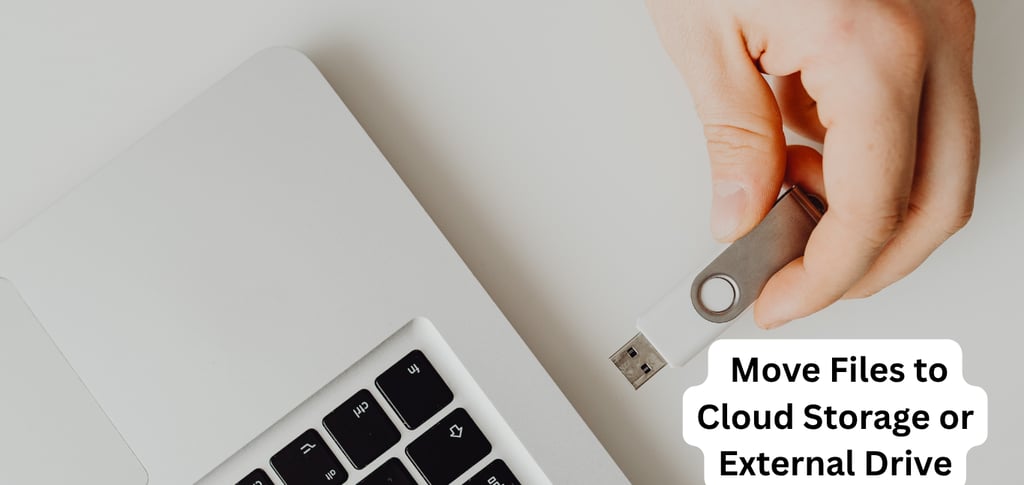
Method 6: Move Files to Cloud Storage or External Drive
If you have large collections of photos, videos, or documents that you want to keep but do not access regularly, moving them off the C drive is an excellent option.
OneDrive Files On-Demand: If you use OneDrive, you can enable Files On-Demand, which keeps your files in the cloud but shows them as if they are on your computer. They only download when you open them, saving substantial local space.
Go to OneDrive settings (right-click the OneDrive icon in the taskbar) → Settings → Sync and Backup → Advanced Settings → Files On-Demand and enable "Save space and download files as you use them."
External drive: A 1TB external drive costs very little and gives you a clean permanent storage solution for photos, videos, and archived files.
Method 7: Clear the Browser Cache
Web browsers store cached copies of websites you visit so they load faster on repeat visits. This cache can grow to several gigabytes over time and is completely safe to clear.
In Chrome:
Press Ctrl + Shift + Delete
Set time range to "All time"
Check "Cached images and files" and "Cookies and other site data"
Click "Clear data"
In Edge:
Press Ctrl + Shift + Delete
Select "All time" and check "Cached images and files"
Click "Clear now"
This will not delete your bookmarks, passwords, or saved autofill information
Method 8: Disable and Delete Hibernation File
The hibernation file (hiberfil.sys) is a hidden system file that Windows uses to save your current session when you put the laptop into hibernation mode. It typically takes up 40% to 75% of your total RAM — so on a laptop with 16GB RAM, this file can be 8 to 12GB.
If you do not use hibernation (most users do not), you can safely disable it and reclaim this space.
Open Command Prompt as Administrator and type:
powercfg /hibernate off
Press Enter. The hiberfil.sys file will be deleted automatically. If you ever want hibernation back, run powercfg /hibernate on.
Method 9: Use WinDirStat to Find Hidden Space Consumers
Sometimes the space is being used by something unexpected — a massive log file, a database, a game save directory, or a forgotten download folder.
Download WinDirStat (free, no installation required). Run it, select your C: drive, and it will generate a visual map of everything taking up space on your drive. Large blocks in unusual locations immediately stand out.
This tool has helped many users discover hundreds of gigabytes occupied by things like:
Old game installations in unexpected locations
Backup software that kept full backups on the same drive
Log files from crash dumps that were never cleared
How Much Space Did You Free Up?
After running through these methods, most laptops see:
Temporary files: 2 to 5GB
Windows Update cleanup: 5 to 15GB
Browser cache: 1 to 3GB
Hibernation file: 4 to 12GB
Uninstalled apps: Varies widely
In total, it is realistic to free 10 to 30GB on a laptop that has never been cleaned. Running these steps every few months prevents the problem from recurring.
FAQ's
Is it safe to delete everything in the Temp folder?
Yes. The Temp folder is specifically designed to hold files that are meant to be deleted. Windows and applications recreate whatever they need. You can safely delete all of it.
Will deleting Windows Update files prevent me from getting future updates?
No. Deleting old Windows Update cleanup files only removes the backup of the previous update version. Future updates download and install normally.
How much free space does Windows 11 need to run properly?
Microsoft recommends at least 64GB total storage for Windows 11, but for smooth operation, you should keep at least 15% of your total drive free. On a 256GB drive, aim for at least 35 to 40GB free.
Can I move the Windows page file to another drive?
Yes, if you have a second drive, you can move the page file there. This frees space on C: and can actually improve performance if the second drive is also fast. Go to Control Panel → System → Advanced System Settings → Advanced → Performance → Settings → Advanced → Virtual Memory → Change.
Related: Why Is My Laptop Slow?
Contact
Reach out for support or collaborations.
info@technofinehub.online
© 2026 TechnoFine Hub All rights reserved.
All guides